
How to add a new user
To add a new user, navigate to Account Details > Users and select Add User. Fill in the required fields, and select Save or Send Invite. The new user will receive a welcome email automatically.
Follow these steps to add a new user:
-
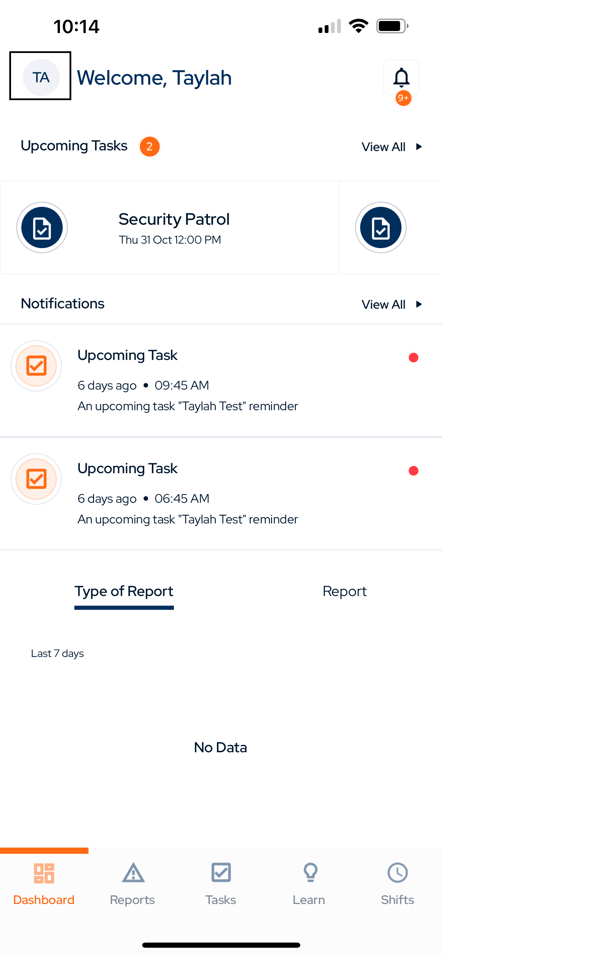
Click the account name icon in the top left corner of the screen.
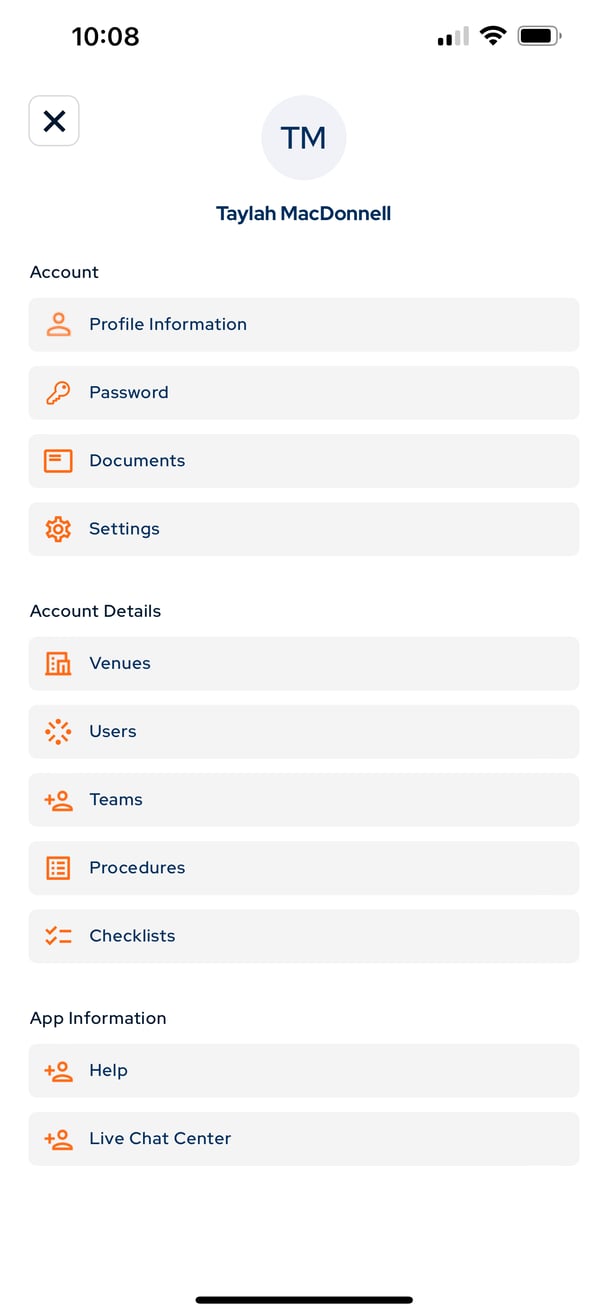
2. Navigate to Account Details and select Users
3. Select Add User in the top right corner of the screen
4. Fill in the required fields: first and last name, email, role, and competency card if available.
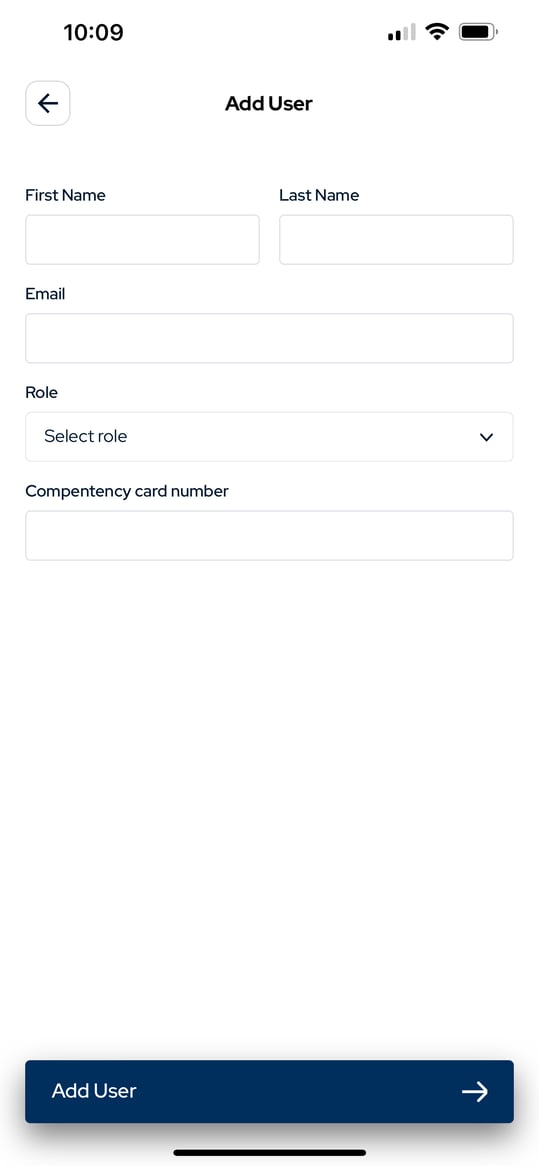
What permissions does each user role have?
When selecting the user's role, note the following:
- Venue Staff — can draft a report only.
- Venue Manager — can draft and submit a report.
- Venue Admin — can draft, submit, and approve a report.
5. Select Save or Send Invite to confirm and create the new user. The user will receive a welcome email to the email address you entered.