1. Navigate to https://www.quantaco.co/

2. Click "LOGIN"

3. Login to QPlatform and select QFinance from the top left drop down
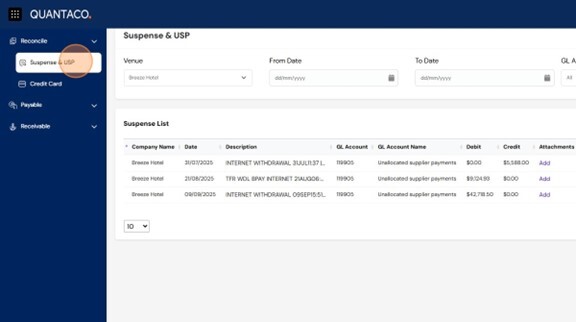
4. From your QFinance dashboard, click the left navigation bar. Under the Reconcile group, select Suspense & USP.
Apply Filters
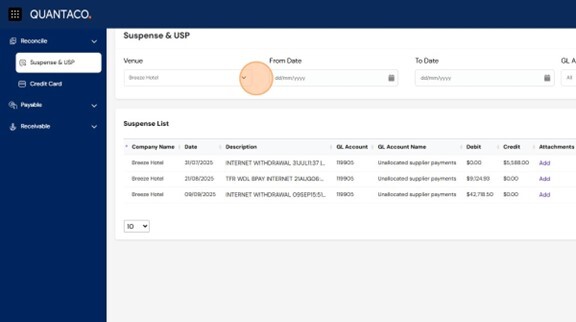
5. At the top of the page, you’ll see four filters:
- Venue
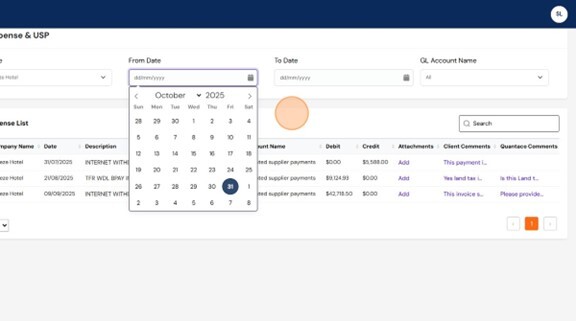
- From Date
- To Date
- GL Account
- Select a Venue to view transactions for a specific location.
- Choose a Date Range to refine your search period.
- Use the GL Account filter to focus on specific accounts.
- You can also toggle between Suspense and Unallocated Suspense Payments (USP) to focus your review.
Review Transactions
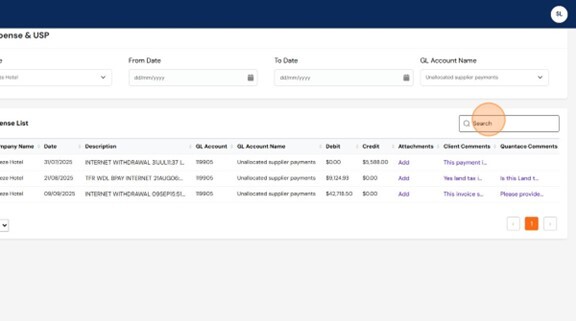
6. Below the filters, you’ll see a list of transactions that match your selected criteria to locate transactions by:- Description
- Date
- Amount
Review Quantaco Comments
7. The far-right column displays Quantaco comments. These comments outline what additional information is required from you to resolve each query.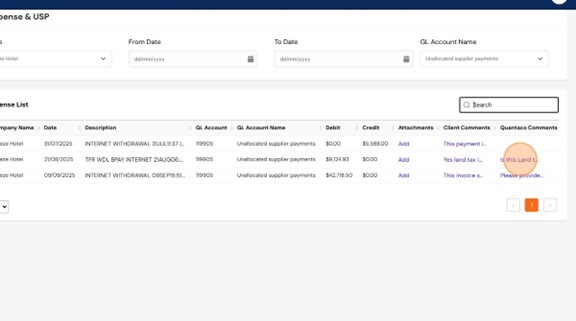
Add Attachments and Comments
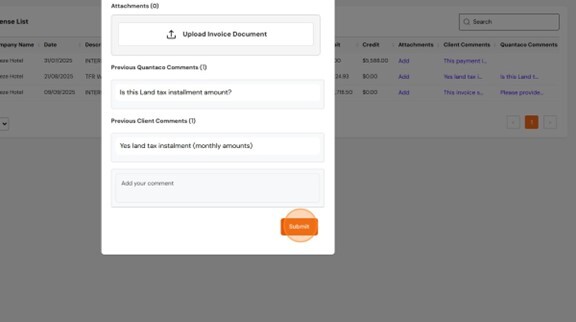
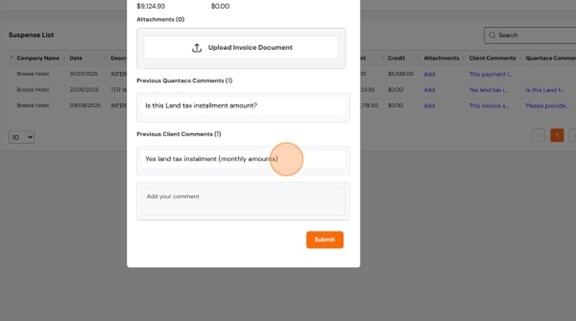
8. You will be able to add support documents of context to each query:- Upload attachments (invoice or receipt) (up to 50MB).
- Add comments for Quantaco to review.
- These comments will remain on the invoice for our team to review. You will also be able to see a history under previous comments.
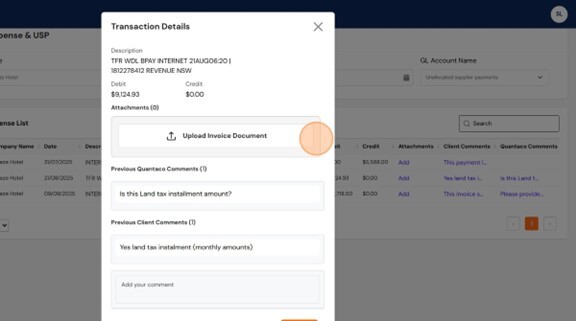
9. Click "Submit" to send this information to Quantaco to review.