
Uploading the Omni Eye Report

-
Export the Omni Eye Daily Summary PDF from the Utopia system for the trading date.
-
In Cashup > Gaming tab, click Upload File to auto-populate the following fields
- Turnover
- Wins
- Jackpots
- Unclaimed Movements
- Clearance
- You can download the uploaded report at any time via the Download File button
- Record any Autopay, CCU or CRT Information
Ensure the Omni Eye Report date range matches the trading date, otherwise the upload will fail
If the option to upload report is unavailable, contact support@quantaco.co to enable it
Manually Recording from Omni Eye Reports
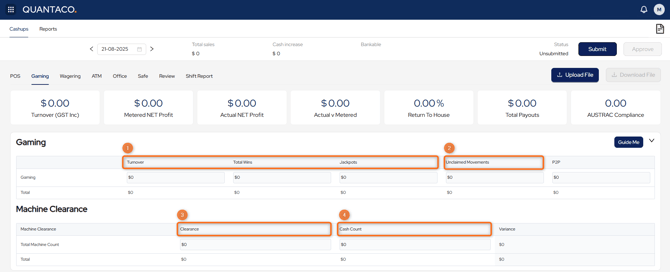
Use the Omni Eye Utopia Daily Summary Report for the trading day to record gaming data into Cashup:
-
Record Turnover, Wins, Jackpots
-
Once these entries are made, the Metered NET Profit should populate at the top of the tab and match the Omni Eye report
-
-
Record Unclaimed Movements from the bottom of the Omni Eye report
- Record the Clearance (notes + coins) from the Omni Eye report into Gaming Machine Clearance
- Record the physical cash count from the machines in Gaming Machine Clearance
- Record any Autopay, CCU or CRT Information
Unclaimed Movement Tip
If there is a "-" symbol on the report, record into Cashup as a positive
If there is no "-" symbol, record into Cashup as a negative
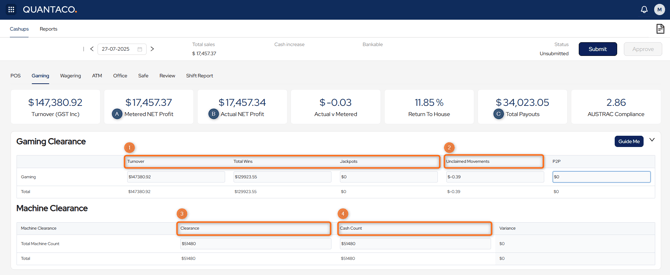
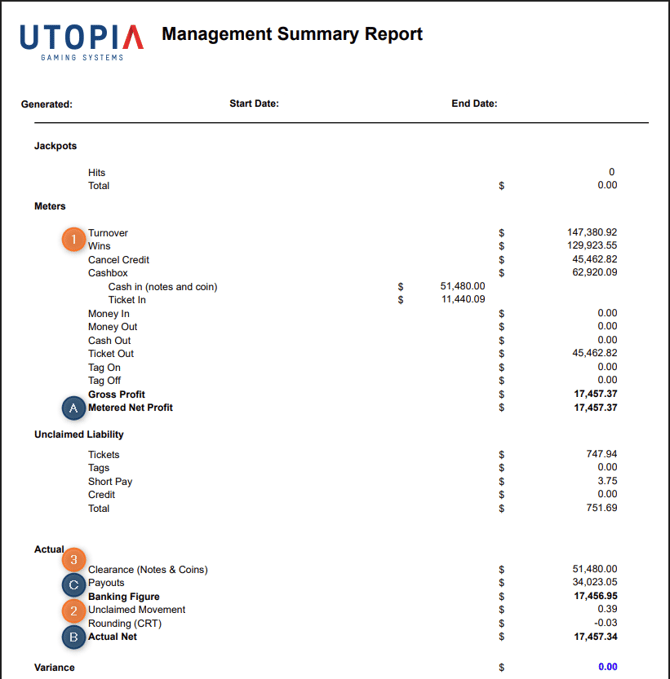
Example of Manually Recorded Omni Eye Report
Enter the following fields:
| Omni Eye Report | Cashup | |
| 1 | Turnover, Wins & Jackpots Total | Turnover, Total Wins & Jackpots |
| 2 | Unclaimed Movement | Unclaimed Movement |
| 3 | Clearance (Notes + Coins) | Clearance |
| 4 | Physical Cash Counted | Cash Count |
Check the following fields to check if the report information has been correctly entered:
| Omni Eye Report | Cashup | |
| A | Metered NET Profit | Metered NET Profit |
| B | Actual NET | Acutal NET Profit |
| C | Payouts | Total Payouts |
FAQs
- Why doesn't the Omni Eye Report upload succeed?
- Check the Omni Eye report is for a single day, and that the report date matches the trading date in Cashup
- Can I edit auto-filled fields?
- Yes, edited fields will show a red icon. You can also re-upload the report to overwrite any changes.
- What if my actual v metered variance doesn't match the Omni Eye report?
- Double check fields have been recorded correctly and review payout fields.
- What if my payouts don't match the Omni Eye Report?
- Check Cashup's Total Payout fields are recorded correctly
(Total Payouts are calculated from CRT Payouts, CCU Payouts and EFT/Cheque Payouts)
- Check Cashup's Total Payout fields are recorded correctly