How to Deactivate a User
Step 1: Log in to StarCompliance
Log in to your StarCompliance account using your username/email address and password.
Step 2: Navigate to Users
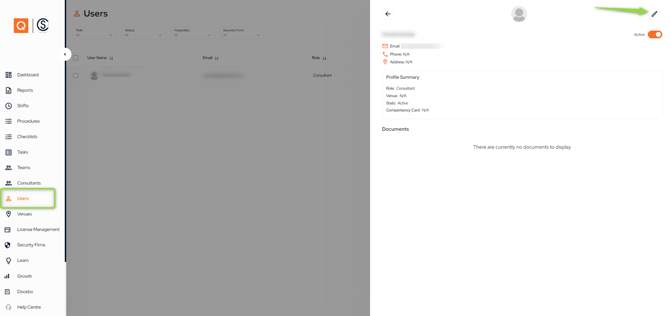
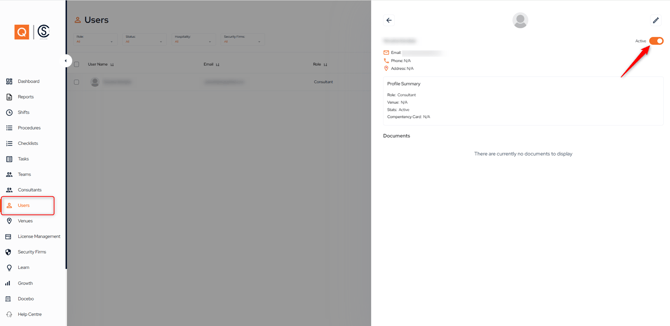
From the left-hand navigation menu, click Users.
Step 3: Select the User
Search for and select the user you want to deactivate. The user's profile will open on the right-hand side of the screen.
Step 4: Deactivate the User
Locate the Active toggle in the top-right corner of the user's profile and switch it Off.
The user is now deactivated and will no longer be able to access StarCompliance.
Frequently Asked Questions
Will deactivating a user delete their account?
No. Deactivating a user only removes their access to the system. Their account and historical data remain available.
Can I reactivate a user?
Yes. Open the user's profile and switch the Active toggle back On to restore their access.
How to Change an Existing User Role/Permission?
Overview
You can update an existing user's role to change the permissions they have within StarCompliance. Assigning the correct role ensures users have access only to the features required for their responsibilities.
Note: Changes to a user's role take effect immediately after the update is saved.
When to Change a User's Role
Update a user's role when:
- An employee changes responsibilities.
- A user requires additional permissions.
- A user's access needs to be reduced.
- An incorrect role was assigned during user creation.
Step 1: Log in to StarCompliance
Log in to your StarCompliance account using your username/email address and password.
Step 2: Navigate to Users
From the left-hand navigation menu, click Users.
Step 3: Open the User Profile
Search for and select the user whose role you want to update.
Step 4: Edit the User
Click the Edit (pencil) icon in the top-right corner of the user's profile.
Step 5: Change the Role
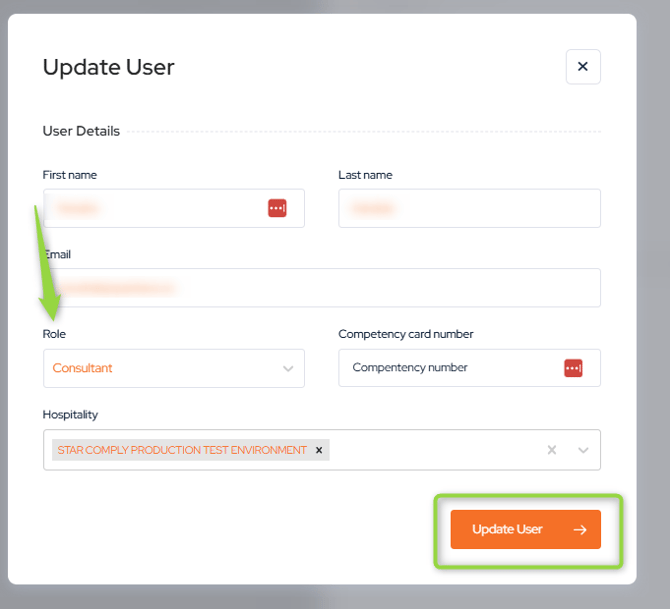
In the Role drop-down list, select the appropriate role for the user.
Step 6: Save the Changes
Click Update User to save the changes.
The user's role and permissions will be updated immediately.