
Accessing the Forecasting Tool
-
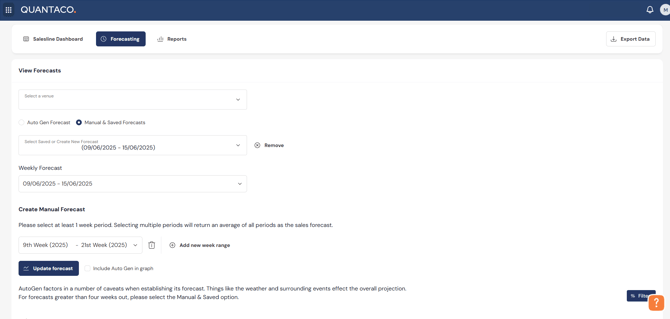
Click Forecasting from the top of your Salesline home screen.
-
Select your Venue.
-
Click Manual & Saved Forecasts.
-
Select Create New.
Set Your Forecast Parameters
-
Use Weekly Forecast to choose the weeks you want to forecast.
-
Once selected, pick your Baseline:
-
This is based on your venue’s historical average performance.
-
Used as the foundation for your future sales estimate.
-
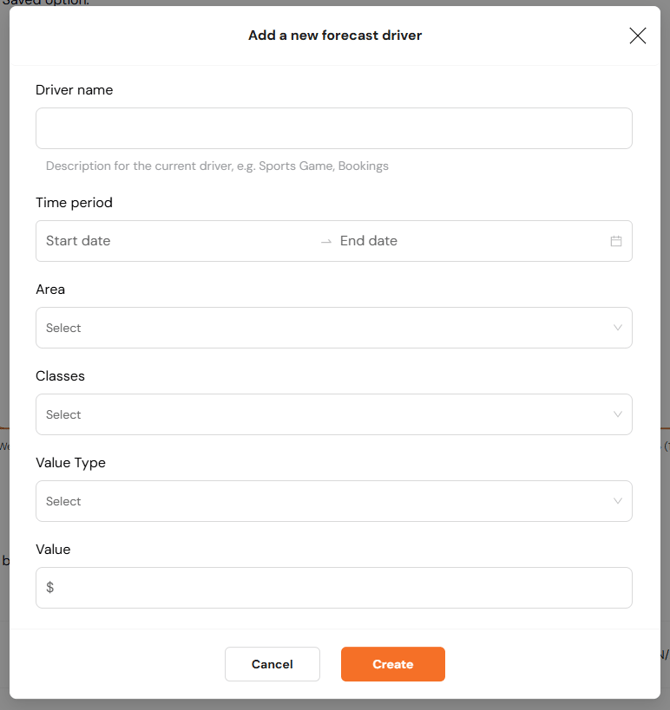
Add Forecast Drivers (Optional)
If you know of specific events that will affect sales:
-
Click Add New Driver.
-
Enter the expected value impact and time.
-
Example: Saturday 14:00–17:00 – Add $4,000 for a televised sporting event.
-
These adjustments allow for a more accurate, customised forecast.
Viewing Forecast Sales
-
Forecasted values will appear in the Salesline Dashboard under the Cumulative Sales tab for the selected forecast period.
FAQs
Q: What is a forecast driver?
A: A factor like a local event or holiday expected to impact sales, manually added to adjust the forecast.
Q: Where do I see my forecasted data?
A: In the Salesline Dashboard, under the Cumulative Sales section.